Grow Slides · for every screen at church

Every screen in your church, ready for Sunday.

Build a slideshow once and put it on any TV in your building: the kids rooms, the youth room, the lobby, even the café. If you use Grow Curriculum, this week's lesson is already built.

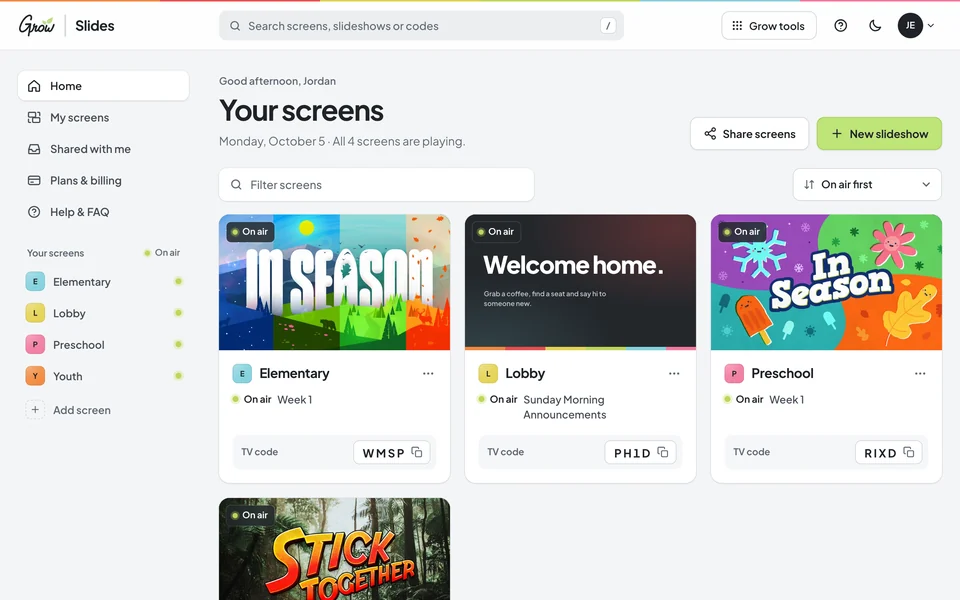
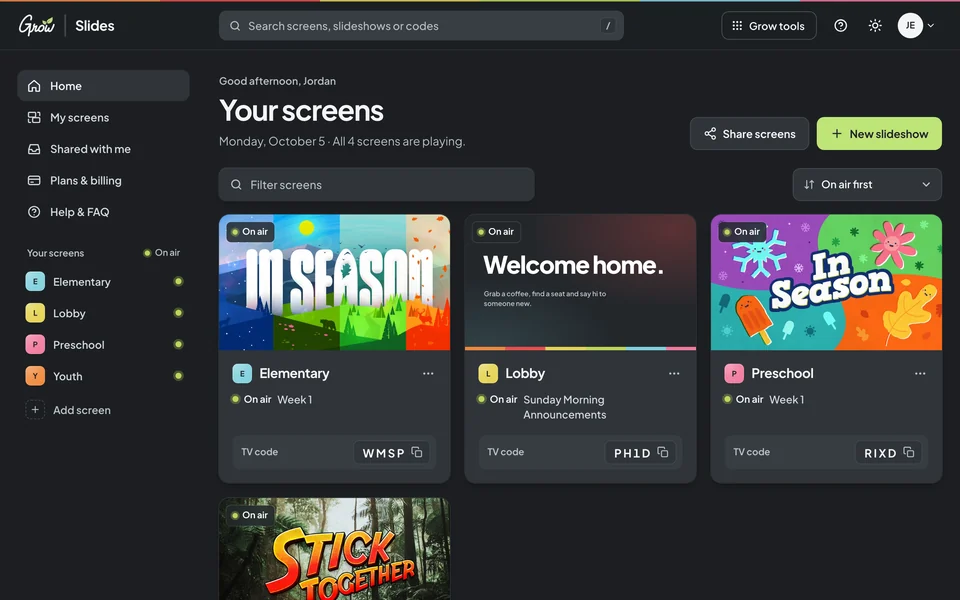
The Grow Slides home screen on desktop: four screens named Elementary, Lobby, Preschool, and Youth, each on air with its TV code The Grow Slides home screen on desktop in dark mode: four screens, each on air with its TV code
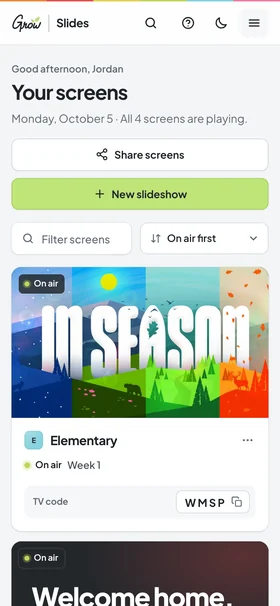
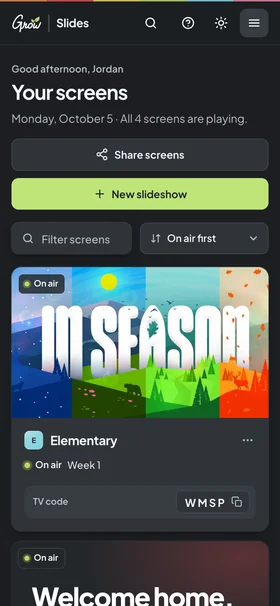
The same screens on a phone The same screens on a phone in dark mode
Grow Slides on desktop and phoneGrow Slides on a phone · sample church with fictional names
Sound familiar?

Getting the lesson on the screen shouldn't be the hard part.

You planned a great Sunday. Then the TV needs a laptop, the laptop needs a cable, and the cable needs the one volunteer who knows which input to pick. That's a setup problem, not a you problem.

  1. Sunday, 8:40 am

    The laptop shuffle.

    A laptop in every room, an HDMI cable that's always missing, and one volunteer who knows which input the TV needs.

  2. Every week

    Rebuilding the deck.

    Downloading the videos, copying the big idea and memory verse, and building the same kind of slideshow again for every room.

  3. All over the building

    Screens that sit dark.

    The lobby, youth room, and café TVs could welcome people and share what's next. They're blank because updating them is one more job.

You don't need a tech team. You need every TV to just be ready.

How it works

Three steps, and every room is ready.

Grow Slides sends your slideshows over the internet to the TVs you already have. There are no cables to run and nothing to plug in on Sunday.

A 30-second tour: screens, slideshows and the TV code. Sample church · fictional names.
  1. Make a screen for each TV

    Name it for the room, like Elementary, Preschool, Youth, or Lobby. Each screen gets its own TV code.

  2. Add your slideshows

    Build one from scratch, or preload a week from your Grow series. Edit anything you like, then turn it on.

  3. Put it on the TV

    Open the Grow Slides app on the TV, type the code, and you're done. Click through with the TV's own remote.

What's inside

Everything you need to run a screen, and nothing you don't.

Six parts of Grow Slides that replace the laptop, the cable, and the weekly rebuild. Pick one to take a look.

Screens

One screen for every TV.

Make a screen for each room, and each TV shows exactly what's meant for that room. You manage every screen from one place, so you can see what the whole building is playing without walking the halls.

  • As many screens as you have TVs
  • Each screen gets its own TV code
  • Grid or list view, with search
  • Share all your screens with your team
My screens: cards for Elementary, Lobby, Preschool, and Youth, each with its TV code, plus an Add screen card My screens in dark mode: cards for four rooms, each with its TV code
Sample church · fictional names
A screen for every room

Start with one room. Then light up the whole building.

Each screen plays its own slideshows, so preschoolers see their lesson, students see theirs, and the lobby says welcome.

  • Preschool

    This week's Bible story slides and memory verse, with big, simple art.

  • Elementary

    The bumper video, big idea, and teaching video, in order and ready to go.

  • Youth room

    Series art while students walk in, then the night's teaching slides.

  • Lobby

    A warm welcome, this week's events, and where first-time families should go.

  • Café

    The menu, today's specials, and what this week's sales support.

  • Check-in & hallways

    Volunteer needs, service times, and a countdown before things start.

Better with Grow Curriculum

Already using Grow? Your slides are already built.

Every Grow Curriculum plan includes Grow Slides. Choose your series and week, and the bumper video, big idea, teaching video, Bible story slides, and memory verse load in order. Tweak anything, then turn it on for the room.

  • Preschool, Elementary, and Students series
  • Every week of the volumes you own
  • Fully editable, just like a slideshow you built
See Grow Curriculum →Grow Slides is included with every Grow Curriculum plan.
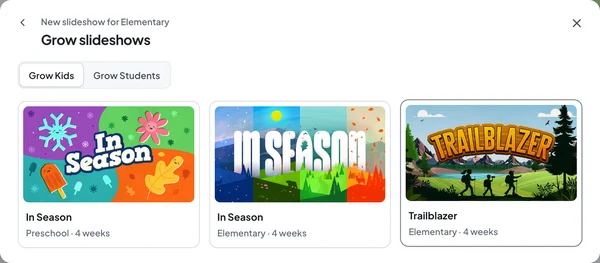
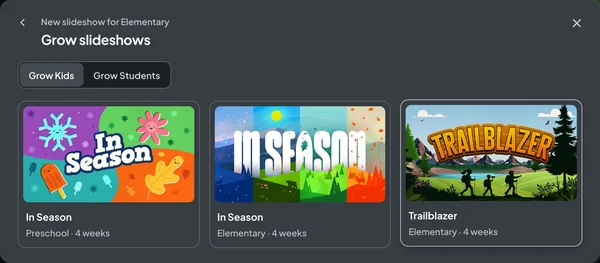
The Grow slideshows picker showing Grow Kids series with their art, ready to preload a week The Grow slideshows picker in dark mode showing Grow Kids series
Picking a Grow series in the redesigned Grow Slides · sample data
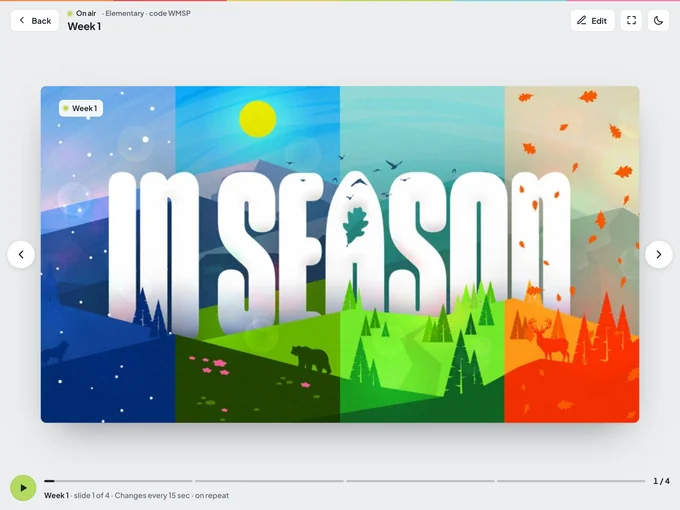
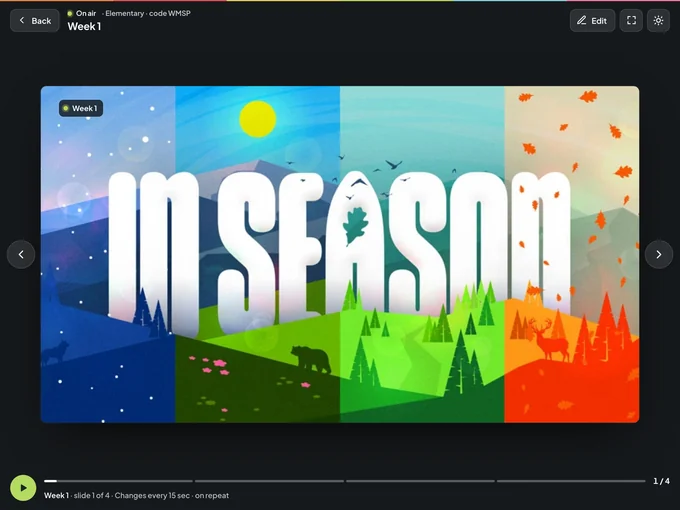
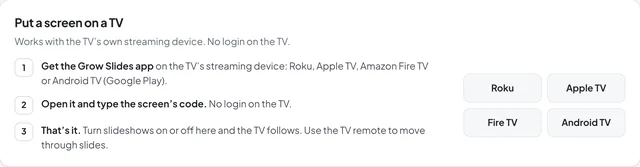
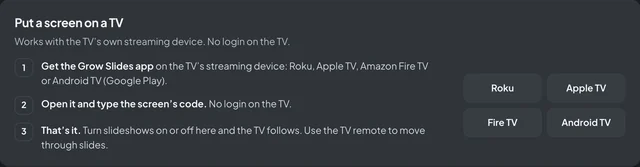
Put a screen on a TV: get the Grow Slides app on Roku, Apple TV, Fire TV, or Android TV, then type the screen's code. No login on the TV. Put a screen on a TV, dark mode: get the app, type the code, no login on the TV
The TV steps inside the redesigned Grow Slides
On the TVs you have

No laptop in the room. No login on the TV.

Search "Grow Slides" in your streaming device's app store, open it, and type the screen's TV code. There are no passwords on the TV and no accounts to share, and volunteers click through with the remote that's already there.

  • Apple TV
  • Roku
  • Amazon Fire TV
  • Android TV (Google Play)
Made by ministry leaders

We built Grow Slides because we needed it too.

Our team has stood in the hallway on a Sunday morning hunting for the right cable. When you have a question, you'll hear from people who get it.

  • Talk to a real person

    Chat with us inside Grow Slides, email support@stuffyoucanuse.org, or call 877-486-3272.

  • Watch the full walkthrough

    Our tutorial videos show building a slideshow, preloading a Grow week, and putting it on a TV. Watch on YouTube

  • Set it up together

    Book a free Zoom call and our team will help you get your first room on the screen. Book a Zoom call

Your real options

How Grow Slides compares to what you use now.

Most churches get slides on a TV one of these ways, and each one works. Here's an honest look at where Grow Slides fits.

A laptop and HDMI cable, a USB stick in the TV, signage software, and Grow Slides compared
FeatureLaptop & HDMILaptopUSB stick in the TVUSBSignage softwareSignageGrow Slides
Update every TV from your desk
No laptop or cable in the room
Each room plays its own slideshow
Volunteers can run it with the TV remote
Video, music, and GIFs on your slides
This week's lesson already built

"This week's lesson already built" means Grow series slideshows, which come with every Grow Curriculum plan.

Pricing

Try it free for 10 days.

Add a card to start your 10 free days: $0 today, then $9.97/month unless you cancel. Already on Grow Curriculum? You're covered.

Grow SlidesMonth to month

Monthly

Flexible. Pay as you go, one month at a time.

$9.97/month

After your 10-day free trial

Start free trial

Everything in Grow Slides

  • Unlimited screens, one per TV
  • The full slideshow editor
  • Apple TV, Roku, Fire TV, and Google Play apps
  • Sharing with view or edit access
  • In-app chat with our team
Grow SlidesBest value
Save $22.64 a year

Yearly

One payment for the whole ministry year.

$97/year

About $8.08/month, billed yearly

Subscribe yearly →

Everything in Grow Slides

  • Unlimited screens, one per TV
  • The full slideshow editor
  • Apple TV, Roku, Fire TV, and Google Play apps
  • Sharing with view or edit access
  • In-app chat with our team
Grow CurriculumIncluded

Already on Grow?

Grow Slides is included with every Grow Curriculum plan.

$0extra

Plus your Grow series, preloaded and ready for every week

Log in to Grow Slides

Also included with every plan

  • Lesson Builder
  • Grow Hubs
  • The Planning View

New to Grow? Plans start at $597/yr (or $58/mo) per age group. See Grow plans

$0 today.Your card is checked, not charged. Your first room can be on the screen in minutes.
Questions first?Email support@stuffyoucanuse.org, call 877-486-3272, or book a Zoom call with our team.
Good questions

Before you start.

The questions ministry leaders ask us most, answered plainly.

Want to talk it through?

Our team is happy to help you set up your first room. Email support@stuffyoucanuse.org or call 877-486-3272.

Book a Zoom call
What is Grow Slides?

Grow Slides is a simple way to put slideshows on any TV in your church. You build slideshows on the web, add them to a screen for each TV, and the Grow Slides app on that TV plays them.

How does the free trial work?

Add a card to start your 10 free days: $0 today, then $9.97 per month unless you cancel before they end.

Is Grow Slides included with Grow Curriculum?

Yes. Grow Slides is included with the Grow Subscription, along with Lesson Builder, Grow Hubs, and the Planning View, and with Teaching Only too. Log in to Grow Slides with your Grow account to get started.

Do I need Grow Curriculum to use Grow Slides?

No. Anyone can subscribe to Grow Slides on its own and build slideshows from scratch. If you use Grow Curriculum, your series come preloaded.

Which devices does it work with?

The Grow Slides app is available for Apple TV, Roku, Amazon Fire TV, and Android TV through Google Play. Connect one of those streaming devices to any TV and you're ready.

How many TVs can I use?

As many as you have. Make a separate screen for each TV, like the preschool room, elementary room, youth room, lobby, or café, and give each one its own slideshows.

Do volunteers need to log in on the TV?

No. Open the Grow Slides app, type the TV code for that screen, and you're set. Use the TV's own remote to move through the slides.

Can I edit the preloaded Grow slides?

Yes. Preloaded slideshows are fully editable. You can add, delete, or reorder slides, change text and colors, and add your own images, videos, and backgrounds.

How do I get help?

Use the chat inside Grow Slides, email support@stuffyoucanuse.org, call 877-486-3272, or watch the full walkthrough.