Grow Projects · for church teams
Every project, on track.
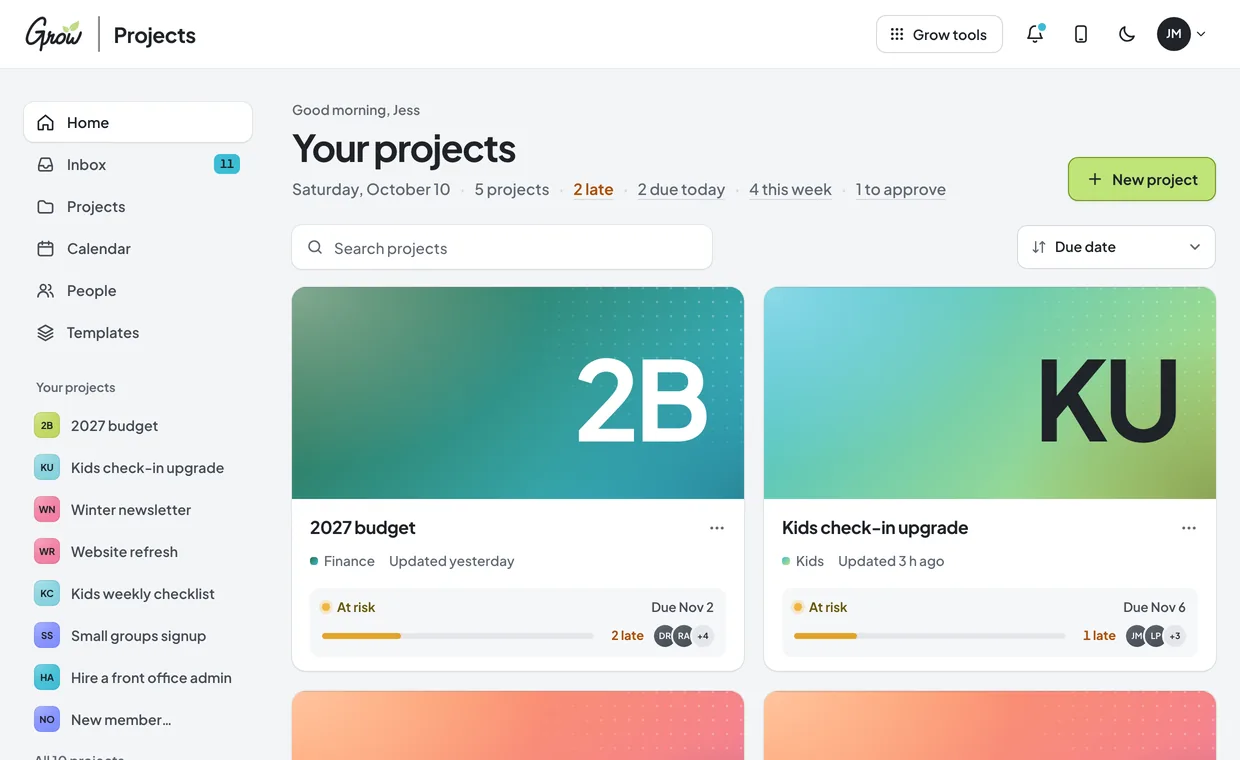
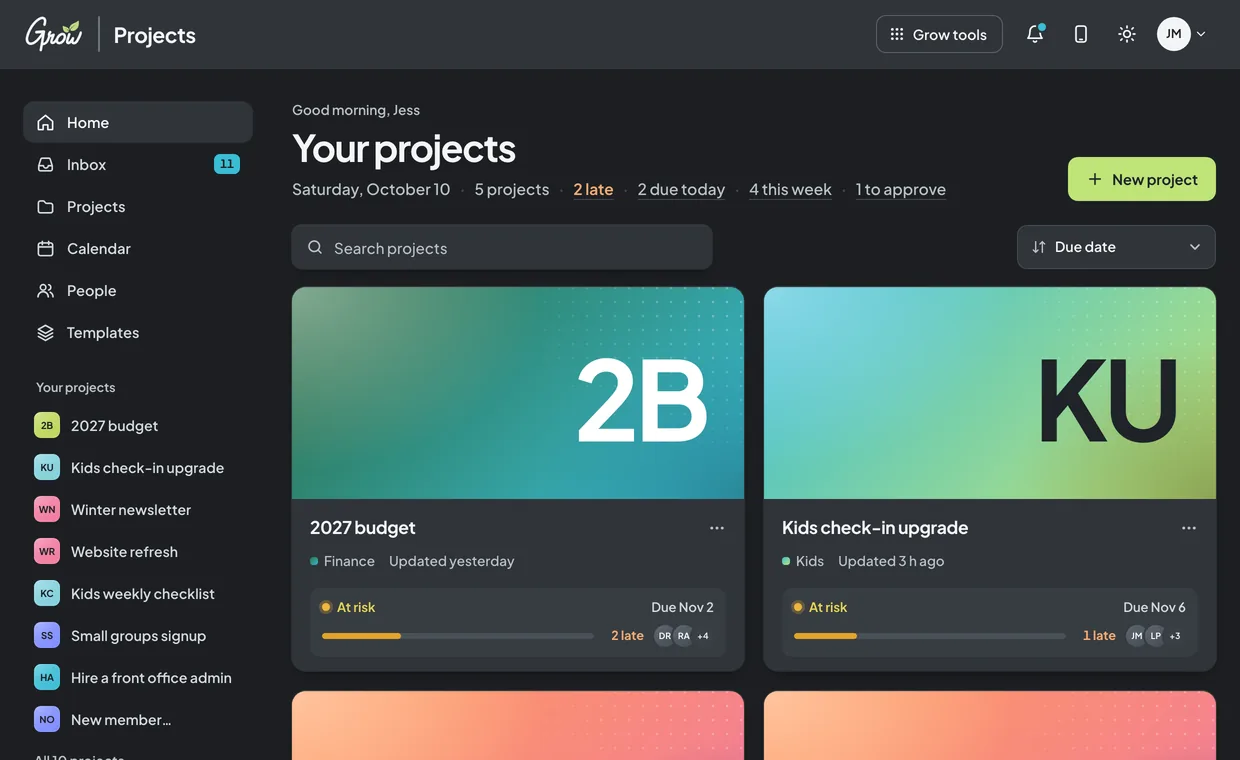
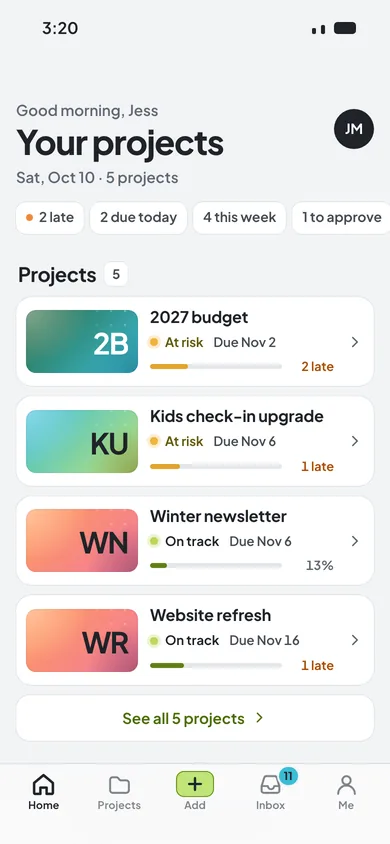
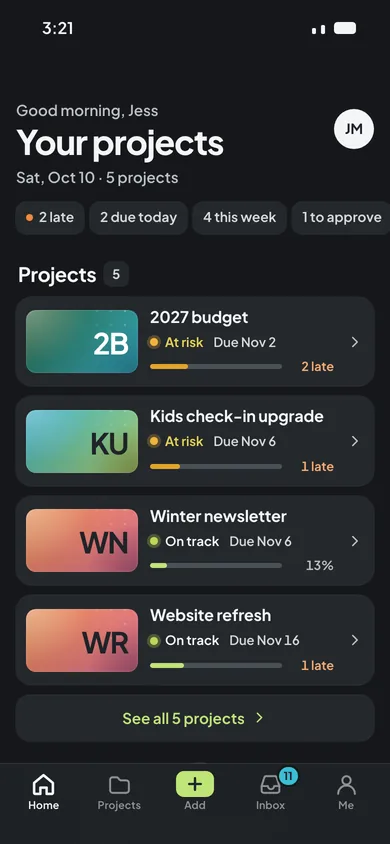
The website refresh, next year’s budget, the new hire, the building work. Grow Projects keeps your church staff’s projects in one place, with a status, a due date and a clear next step for everyone. Your team works on the web and on their phones. Volunteers just get a link.
A live demo with a sample church. Nothing to install.
How it works
Three steps, then you’re working.
- 1
Start a project
From a template (website refresh, hiring, budget planning and more) or blank. Each template comes with phases, tasks and timing.
- 2
Set the due date
Every task gets a date counted back from it, and the right person. Move the due date later and the tasks move with it.
- 3
Work it together
Everyone sees what’s next, what’s late and what’s waiting for approval. The lead keeps the status honest: on track, at risk or off track.
Timeline
See the whole plan on one line.
Every phase and task toward the due date, with today marked. When something slips, you see it while there’s still time.
Tasks due that dayNeeds approvalPhaseDue date
Templates
Start from work you’ve done before.
Use one as it is, change anything, or save your own from a project you’ve already run.
Part of the Grow suite
Tasks that open the right Grow tool.
When a task needs an announcement on the screens, a post or an update for your people, it opens the Grow tool that does it:
- Put the announcement on the screens in Grow Slides
- Schedule the posts in Grow Social
- Post the update in Grow Hubs
- Send it to families in Grow App
On every phone
Your team gets an app. Volunteers just get a link.
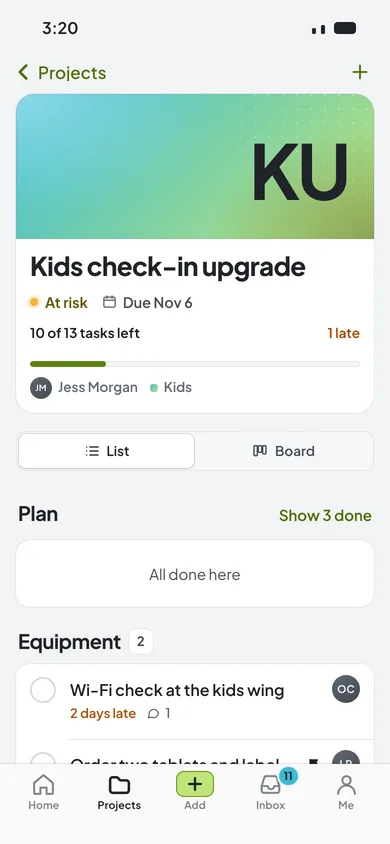
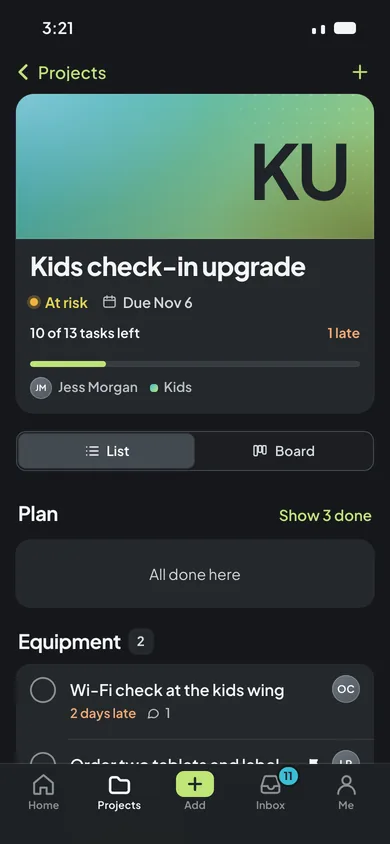
The phone app
Swipe a task to finish it, add one in two taps, and approve from the inbox. It’s the same list as the desktop, so a task done on the go is done everywhere.
Open the phone app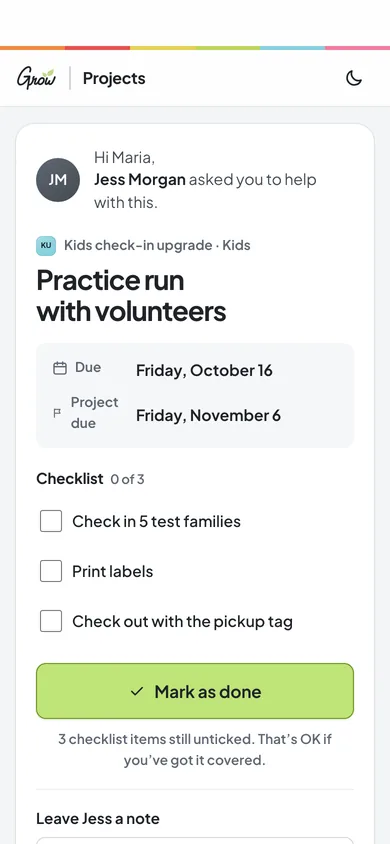
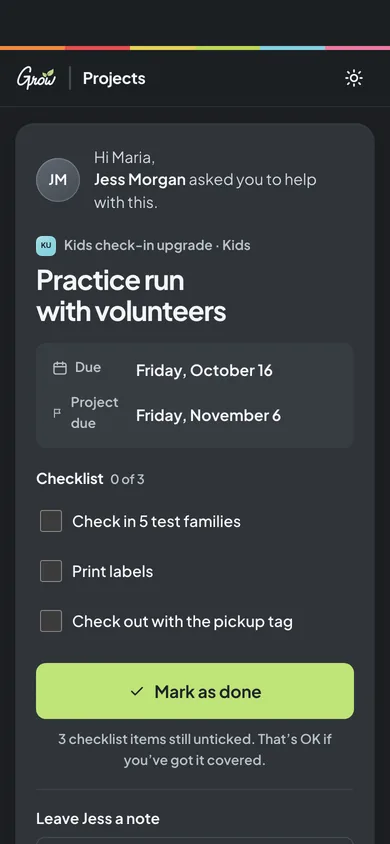
A link for volunteers
No account and no seat. Maria taps the link from a text, ticks off the checklist, marks it done or leaves a note, and it lands in your inbox.
See Maria’s task linkCalm on purpose
Made for church staff, not project managers.
At risk · Due Nov 6
Status in plain words
Every project shows its status, its due date and how much is left. The lead sets the status, so it means something.
Waiting for Daniel to approve
Approvals without email chains
Mark a task as needing approval and it goes to the right person. They approve in one tap.
Communications · Finance · Facilities · Kids
Every team, one place
Each team has its own colour, and each person sees the work that’s theirs.
Questions
Good to know.
What kinds of projects is it for?
Ordinary church-office work: a website refresh, the budget, a new hire, onboarding, building repairs, a sign-up launch, a newsletter. Anything with a goal, a team and a due date. Repeating work (like a weekly checklist) can live in an ongoing project with no end date.
Do volunteers need an account?
No. Assign a task to a volunteer and send them its link. They can see what to do, tick the checklist, mark it done or leave you a note. In this prototype the links work on this device only.
Does it connect to Planning Center or Google Calendar?
Not yet. Both show up in settings as placeholders, clearly marked “not connected”.
Is there an app in the App Store?
The phone app in this prototype is a web app you add to your home screen. It opens full screen, like any other app.
How much does it cost?
Pricing TBD.
Is this real data?
No. Crossroads Community Church, its people and its projects are sample data.
See a church’s projects, ready to work.
Ten projects with real-looking tasks, approvals and due dates, from the website refresh to the 2027 budget.